Tranches and lots, in two words
- A tranche is a part of the project the customer can commit to separately: the firm tranche they sign now, an optional tranche they may add later — "open-plan floor", "phase 2", "car park".
- A lot is a trade or a work package inside a tranche: "Lot 01 — Structural work", "Lot 02 — Finishing", "Lot 03 — Ceilings".
Both are optional and independent. A quote can have lots without tranches, tranches without lots, both, or neither — in which case nothing changes from the plain list you know.
Step 1 — Give each line a tranche and a lot
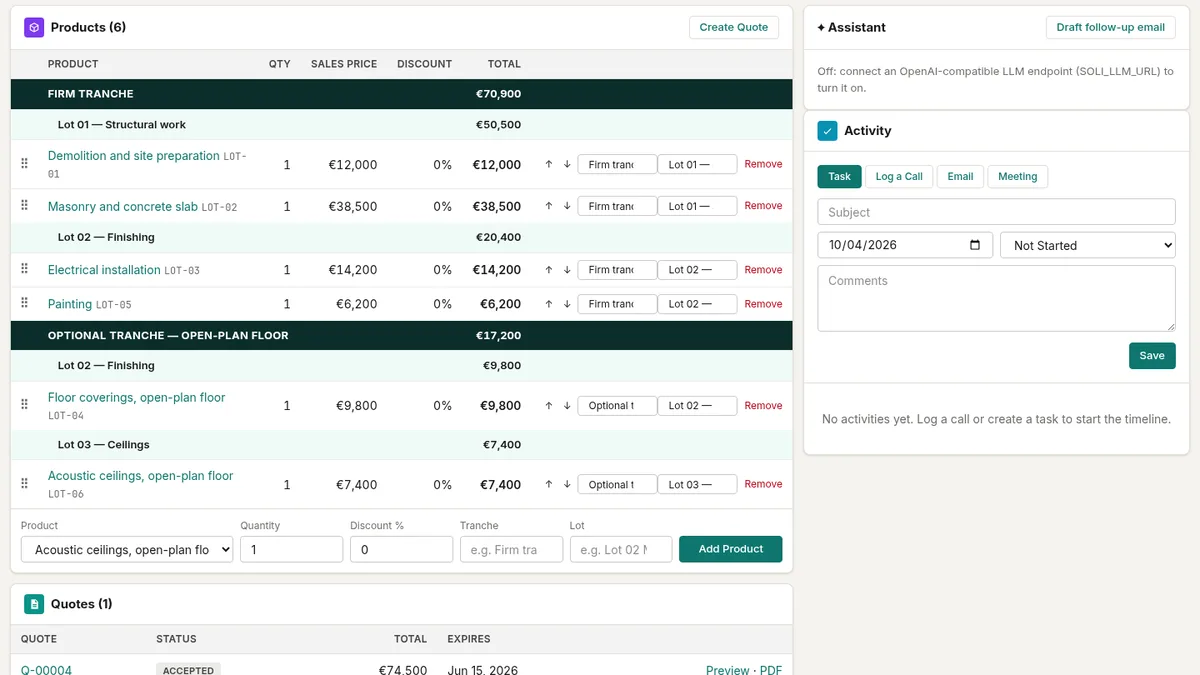
Open the opportunity and go to its Products card. When you add a product, the form now has two more fields next to quantity and discount:
- Tranche — for example "Firm tranche";
- Lot — for example "Lot 01 — Structural work".
Type them once; the next time, they are suggested as you type, so the same name is never spelled two ways. Leave a field empty when it does not apply.
Every line already on the deal shows the same two fields at its right end. Change a tranche or a lot there and the line moves at once.
Step 2 — Arrange the lines
The card groups the lines as the documents will: each tranche on a dark heading with its total, each lot beneath it with its own total, and the lines inside.
- Drag a line by its handle (⠿) into another lot to move it there — it takes that lot and that tranche.
- Or use the ↑ ↓ arrows: a line that crosses into the neighbouring lot takes its lot and tranche.
- Tranches come in the order their first line appears, and lots in the order they appear within their tranche: move the first line of a tranche to reorder the tranches.
The deal amount is still the sum of all lines, so the pipeline and the forecast stay right.
Step 3 — Create the quote
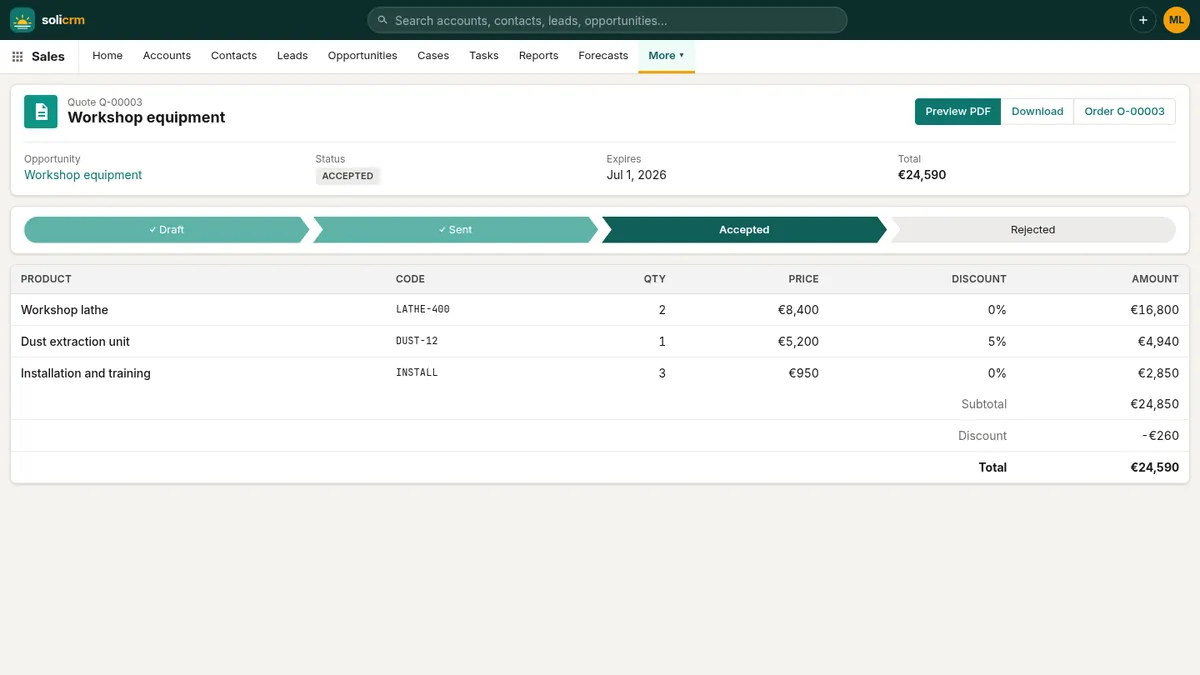
Create Quote copies the lines with their tranches and lots. On the quote page, and in its PDF:
- each tranche starts with its title, and ends with Subtotal Firm tranche: €70,900;
- each lot has its title, its lines and Lot 02 — Finishing subtotal: €20,400;
- after the lines, a recap by tranche and lot sums everything up before the totals.
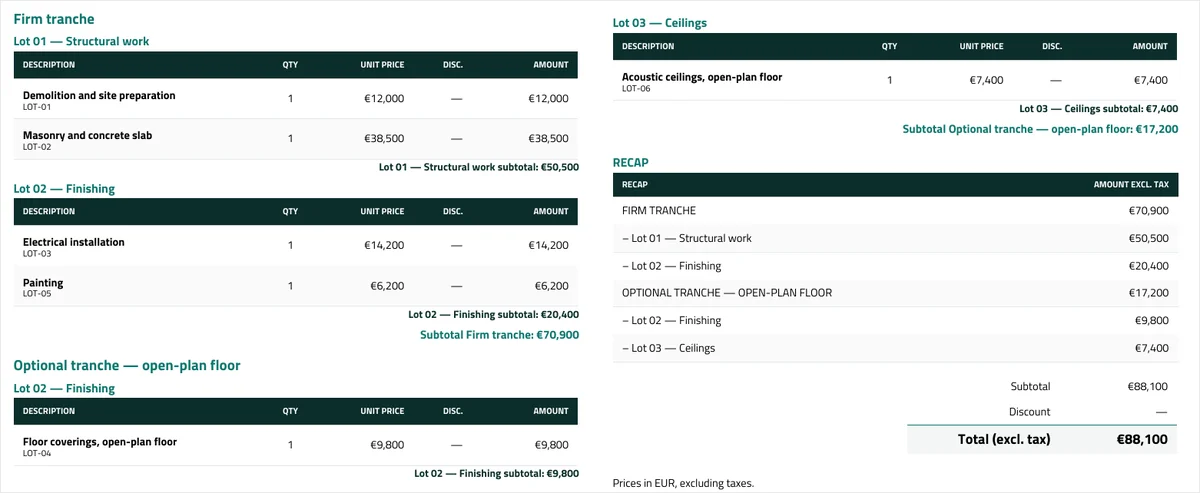
Headings never end a page on their own: a tranche or lot title that would land at the very bottom moves to the next page with its first lines. The three document styles — classic, modern and minimal — all print tranches, lots and the recap.
Step 4 — The order, the invoices and the progress invoices keep them
Tranches and lots follow the document chain without anything to redo:
- the order made from the accepted quote shows the same headings, subtotals and recap, on screen and in the order confirmation PDF;
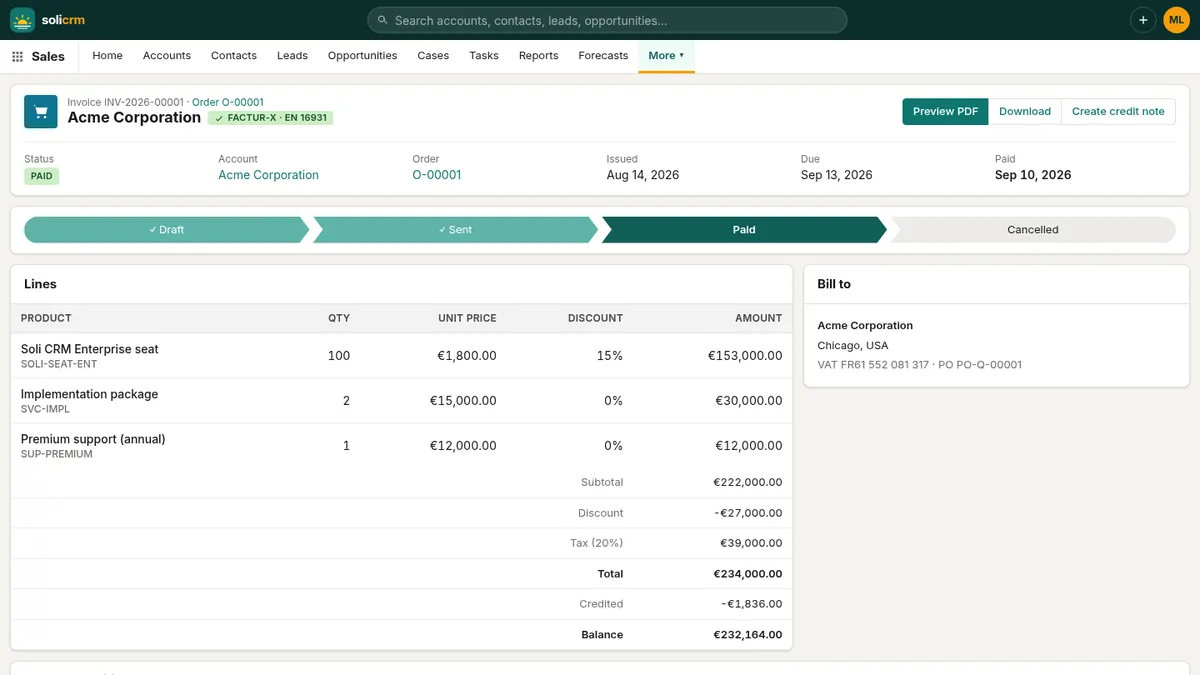
- the invoice of the order keeps them;
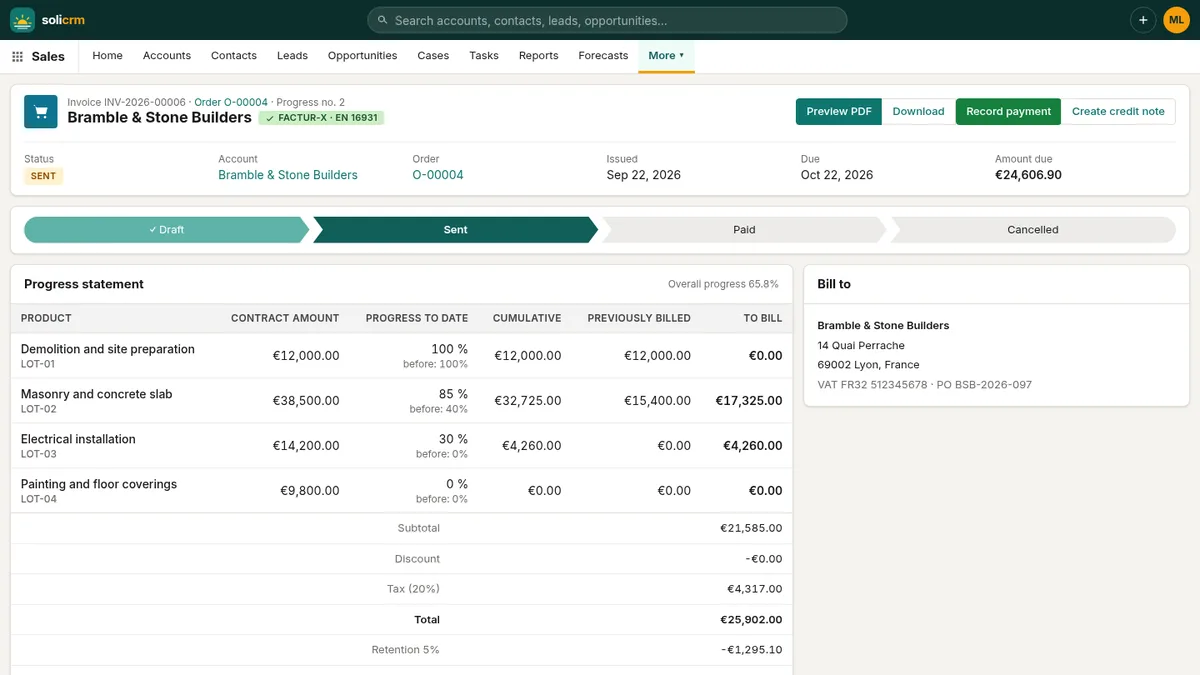
- progress invoices show the progress statement tranche by tranche and lot by lot — and the headings give what this situation bills for each part;
- credit notes keep the tranche and lot of every line they credit.
On a building site, that means the monthly progress invoice reads exactly like the contract the customer signed.
A few good habits
- Number your lots ("Lot 01 — …", "Lot 02 — …") so they read in order, as in a tender.
- Name the optional tranches after what they bring ("Optional tranche — open-plan floor") rather than "Option 1": the customer decides faster.
- Keep one deal per project. If the customer takes the optional tranche later, its lines are already there: remove those they turned down before creating the final quote.
- No tranches? Use lots alone. A recap by lot appears as soon as there are two lots.
In short
- Set a tranche and a lot on each product line of the deal.
- Drag lines or use the arrows to arrange them; totals per tranche and lot on the deal.
- Quotes, orders, invoices, progress invoices and credit notes show headings, subtotals and a recap — on screen and in PDF.
Related: deposits, progress invoices and retention · from quote to signed order.